Introduction
In today's software development world, collaboration, version control, and efficient project management are essential skills for every developer. Whether you are a student, a beginner learning web development, or an aspiring full stack developer, understanding Git and GitHub is crucial for your success.
Git and GitHub have become industry standards for managing code, tracking changes, and collaborating with teams. Most software companies expect developers to be familiar with these tools, making them among the most important technologies to learn during your programming journey.
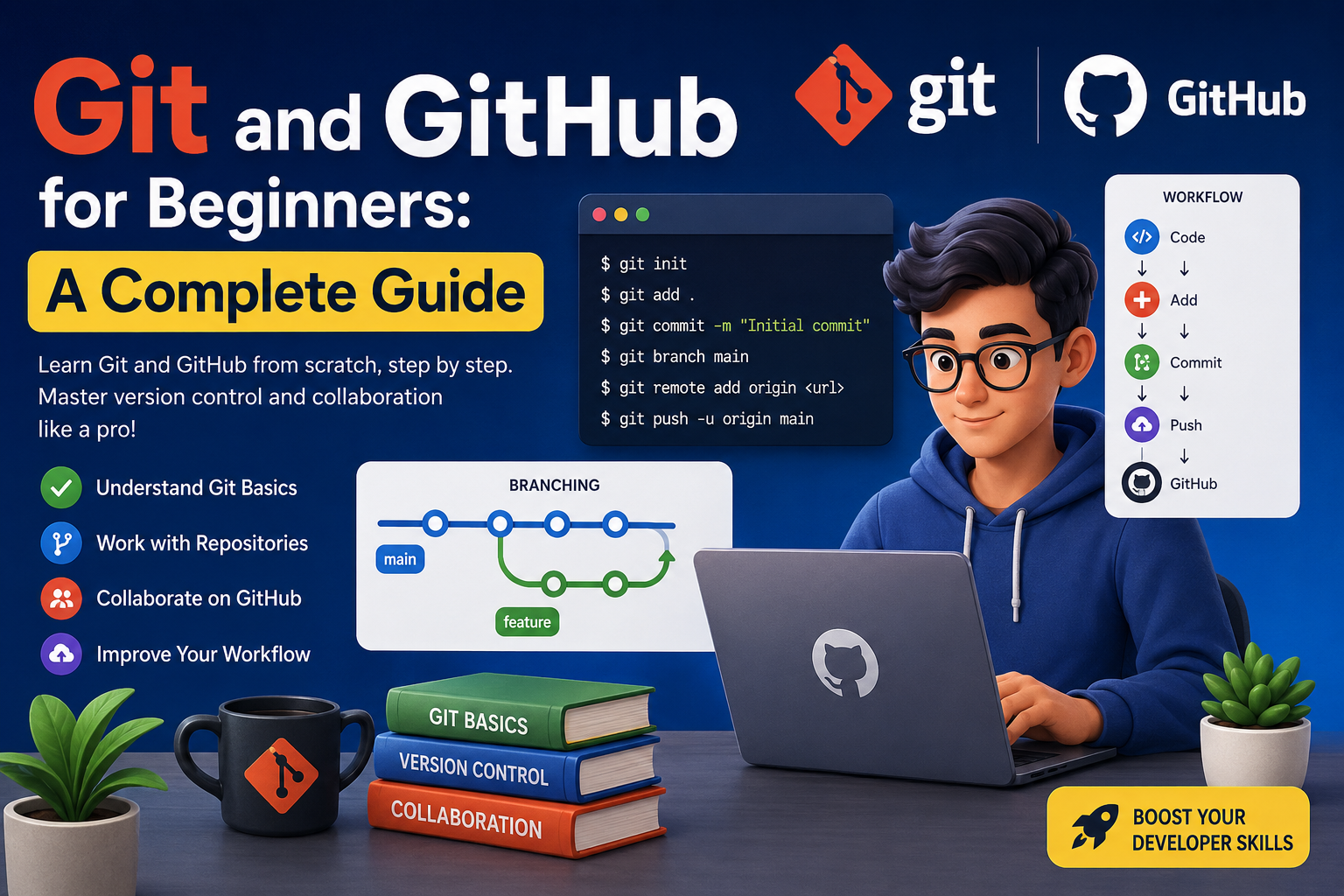
In this complete beginner's guide, we will explore what Git and GitHub are, how they work, their benefits, essential commands, and how you can start using them effectively in your projects.
What is Git?
Git is a distributed version control system that helps developers track changes in their source code over time.
Created by Linus Torvalds in 2005, Git allows developers to:
- Track code changes
- Collaborate with multiple developers
- Revert to previous versions
- Manage different project versions
- Maintain project history
Think of Git as a time machine for your code. Every time you make changes, Git records them, allowing you to revisit any previous version whenever needed.
Why Do Developers Need Git?
Imagine you are building a website and accidentally delete an important feature. Without version control, recovering your work could be difficult.
Git solves this problem by maintaining a complete history of your project.
Benefits of Git
1. Tracks Every Change
Git records every modification made to your project files.
2. Easy Collaboration
Multiple developers can work on the same project without overwriting each other's work.
3. Backup and Recovery
If something goes wrong, you can restore earlier versions of your code.
4. Branching Support
Developers can create separate branches to test new features without affecting the main project.
5. Industry Standard
Almost every software company uses Git for development workflows.
What is GitHub?
GitHub is a cloud-based platform that hosts Git repositories online.
While Git helps manage code locally on your computer, GitHub helps store, share, and collaborate on Git repositories over the internet.
GitHub allows developers to:
- Store projects online
- Collaborate with teams
- Review code
- Track issues
- Manage project documentation
- Showcase portfolios
For developers seeking jobs, GitHub serves as an online portfolio where employers can view coding projects and contributions.
Git vs GitHub: Understanding the Difference
Many beginners confuse Git and GitHub.
| Git | GitHub |
|---|---|
| Version control system | Hosting platform |
| Installed on local computer | Cloud-based service |
| Tracks changes in code | Stores repositories online |
| Works offline | Requires internet for syncing |
| Open-source tool | Web-based platform |
In simple terms:
Git = Tool for version control
GitHub = Platform for sharing Git repositories
Key Terminologies You Should Know
Before learning Git commands, understand these important terms.
Repository (Repo)
A repository is a project folder that Git tracks.
It contains:
- Source code
- Project files
- Commit history
- Configuration files
Commit
A commit is a saved snapshot of your project.
Each commit records:
- Changes made
- Author information
- Timestamp
- Commit message
Example:
"Added login page"
"Fixed navigation menu bug"
Branch
A branch is an independent version of your project.
Developers use branches to:
- Build new features
- Fix bugs
- Test updates
Without affecting the main codebase.
Merge
Merging combines changes from one branch into another.
For example:
Feature branch → Main branch
Clone
Cloning means downloading an existing repository from GitHub to your local computer.
Push
Push uploads local changes to GitHub.
Pull
Pull downloads updated changes from GitHub.
Installing Git
Follow these steps to install Git.
Windows
- Visit Git's official website.
- Download the latest version.
- Run the installer.
- Complete setup using default settings.
Mac
Use Terminal:
brew install gitLinux
sudo apt install gitConfiguring Git for the First Time
After installation, configure your identity.
git config --global user.name "Your Name"git config --global user.email "your@email.com"Verify settings:
git config --listCreating Your First Git Repository
Create a project folder:
mkdir myprojectMove into it:
cd myprojectInitialize Git:
git initOutput:
Initialized empty Git repositoryYour project is now under Git version control.
Understanding the Git Workflow
The Git workflow consists of three stages:
Working Directory
Where you create and modify files.
↓
Staging Area
Where selected changes are prepared for commit.
↓
Repository
Where changes are permanently saved.
Essential Git Commands Every Beginner Should Learn
1. git status
Checks repository status.
git statusShows:
- Modified files
- Untracked files
- Staged files
2. git add
Adds files to staging.
Add single file:
git add index.htmlAdd all files:
git add .3. git commit
Save changes permanently.
git commit -m "Added homepage"Always write meaningful commit messages.
4. git log
View commit history.
git logDisplays:
- Commit IDs
- Author
- Date
- Messages
5. git diff
Shows changes between versions.
git diffUseful before committing.
6. git branch
View branches.
git branchCreate branch:
git branch feature-login7. git checkout
Switch branches.
git checkout feature-loginOr:
git switch feature-login8. git merge
Merge branch changes.
git merge feature-login9. git clone
Download repository.
git clone repository-url10. git pull
Download latest updates.
git pull11. git push
Upload changes.
git pushCreating a GitHub Account
To start using GitHub:
- Visit GitHub.
- Sign up.
- Verify email address.
- Create profile.
- Start creating repositories.
A professional GitHub profile helps recruiters assess your skills.
Creating Your First GitHub Repository
After logging in:
- Click "New Repository"
- Enter repository name
- Add description
- Select Public or Private
- Click Create Repository
Your repository is ready.
Connecting Git with GitHub
Add remote repository:
git remote add origin repository-urlVerify:
git remote -vPush code:
git push -u origin mainYour project is now available online.
Understanding Git Branches
Branches allow parallel development.
Example:
Main Branch:
mainFeature Branch:
feature-loginFeature Branch:
feature-dashboardDevelopers work independently before merging changes.
What are Pull Requests?
Pull Requests (PRs) are GitHub's collaboration feature.
A PR allows developers to:
- Review code
- Suggest improvements
- Discuss changes
- Approve updates
Before merging into the main branch.
Most professional development teams use Pull Requests extensively.
GitHub Features Every Beginner Should Know
Repositories
Store project code.
Issues
Track bugs and feature requests.
Projects
Manage tasks and workflows.
Discussions
Collaborate with community members.
Actions
Automate workflows and deployments.
Wikis
Create project documentation.
Best Practices for Using Git and GitHub
Commit Frequently
Small commits are easier to track and understand.
Good Example
Fixed login validation errorBad Example
Updated stuffUse Meaningful Commit Messages
Clearly describe changes.
Example:
- Added user authentication
- Fixed mobile responsiveness
- Improved API performance
Create Branches for New Features
Avoid working directly on the main branch.
Pull Before Pushing
Always get latest updates:
git pullBefore:
git pushKeep Repositories Organized
Include:
- README file
- Documentation
- Proper folder structure
Common Git Errors and Solutions
Merge Conflicts
Occurs when multiple developers edit the same code.
Solution:
- Review conflicting sections
- Choose correct version
- Commit resolved changes
Detached HEAD
Occurs when checking out a specific commit.
Solution:
git switch mainPush Rejected
Occurs when remote repository contains newer changes.
Solution:
git pull

git push
Why Full Stack Developers Must Learn Git and GitHub
For full stack developers, Git and GitHub are not optional—they are essential.
Full stack projects involve:
- Front-end development
- Back-end development
- Database management
- Team collaboration
Git helps manage all these components efficiently.
Employers frequently ask candidates about:
- Git workflows
- Branching strategies
- Pull requests
- Repository management
Strong GitHub projects can significantly improve your chances of getting hired.
Career Benefits of Learning Git and GitHub
Mastering Git and GitHub can help you:
Get Better Job Opportunities
Most software companies require Git skills.
Build an Online Portfolio
Showcase your projects publicly.
Collaborate on Open Source Projects
Contribute to real-world software.
Improve Teamwork Skills
Learn industry-standard workflows.
Increase Productivity
Manage projects efficiently.
Future of Git and GitHub
As software development continues to grow, Git and GitHub remain critical tools for developers worldwide.
Emerging trends include:
- AI-assisted coding
- Automated testing
- Continuous Integration/Continuous Deployment (CI/CD)
- Cloud-based development workflows
Git and GitHub are central to these modern development practices.
Conclusion
Git and GitHub are foundational tools for every aspiring developer. They provide a reliable way to manage code, track changes, collaborate with teams, and showcase projects to employers.
Whether you are learning front-end development, back-end development, or full stack development, mastering Git and GitHub will significantly improve your productivity and career prospects.
Start by learning basic Git commands, create your first repository, upload projects to GitHub, and gradually explore advanced features like branching, pull requests, and collaboration workflows.
The earlier you begin using Git and GitHub, the better prepared you will be for real-world software development and high-paying tech careers.